

Send Your Data Somewhere
Send the table you just built out of Keboola into a Google Sheet using the Google Sheets data destination connector.
Data that never leaves the platform is not worth much. This step pushes your joined table out to a Google Sheet — the same move, under the same mechanism, that later sends data to a warehouse, a BI tool, or a CRM. Step 4 of the Getting Started arc.
What you need
Section titled “What you need”- The table
opportunity_denormin Storage, from Transform Your Data. - A Google account you can authorize.
Sending data out
Section titled “Sending data out”Getting data out is handled by data destination connectors — the mirror image of the data source connectors you loaded with. The pattern is always the same: authorize the target, pick the Storage table, say where it goes, run it. Sending processed data back into the operational systems it came from is often called reverse ETL; in Keboola it is just another component in your flow.
Google Sheets is the easiest destination to try. The full catalogue covers databases, BI tools, and cloud storage.
Configure the destination
Section titled “Configure the destination”-
Open Components and search for
Sheets. Five results come back, and the first two are Google Sheets — Data Source and Google Sheets — Data Destination: near-identical names, opposite jobs. Pick the Data Destination one (component IDkeboola.wr-google-sheets). Picking the data source by mistake makes the rest of this page impossible.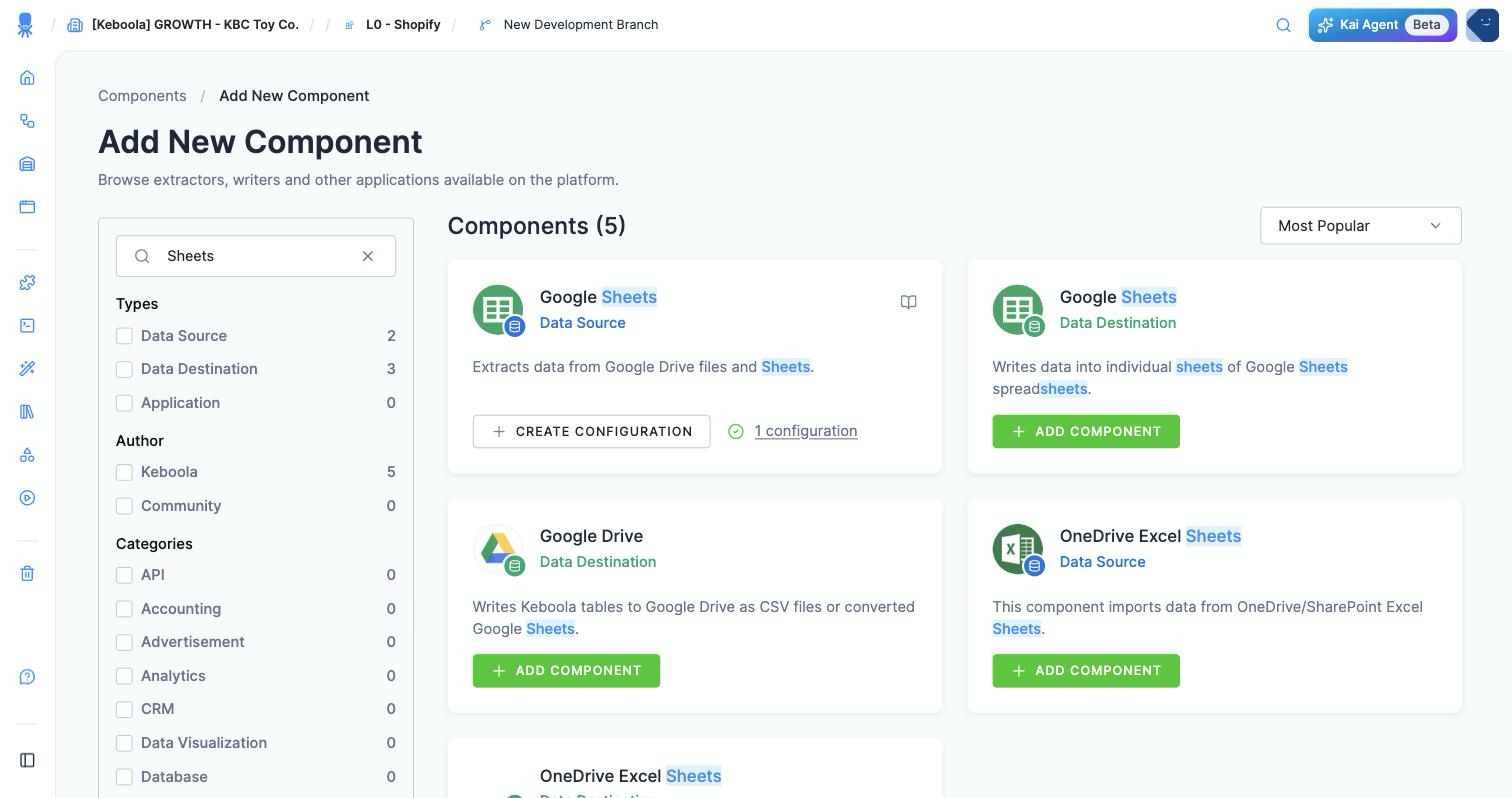
-
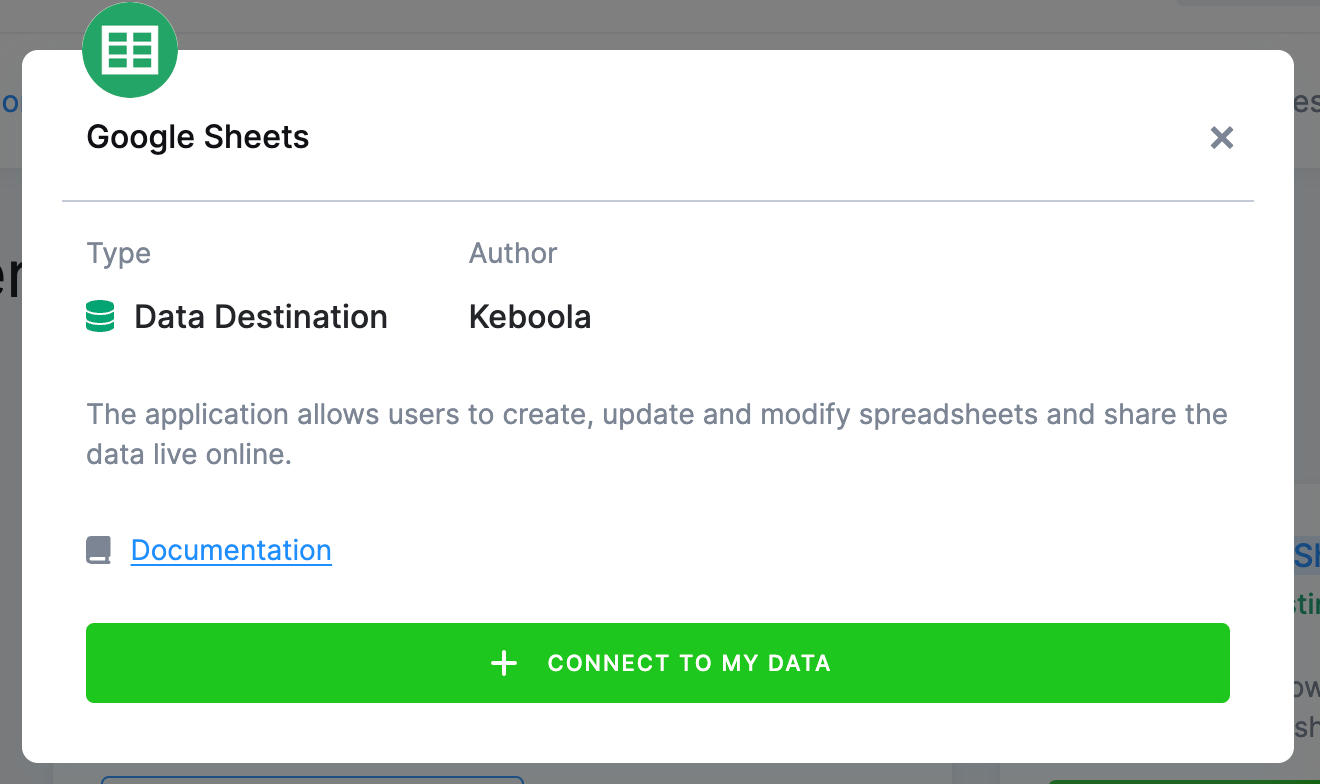
Click Add Component, then Connect To My Data — the only button here, unlike the HTTP connector in step 2, which also offered demo data.
-
Name the configuration
[TUTORIAL] Opportunity denorm to Sheets, add a description, and click Create Configuration.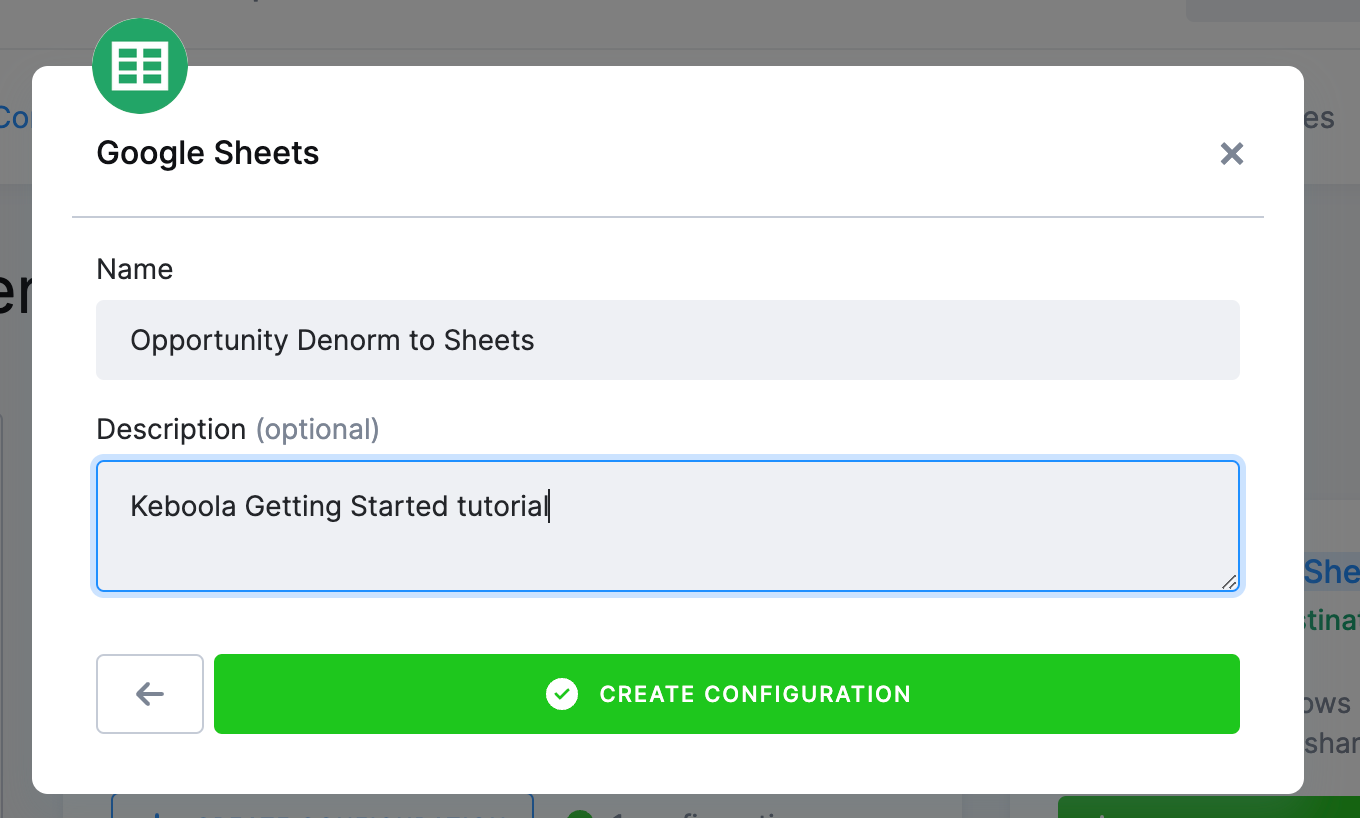
Authorize your Google account
Section titled “Authorize your Google account”-
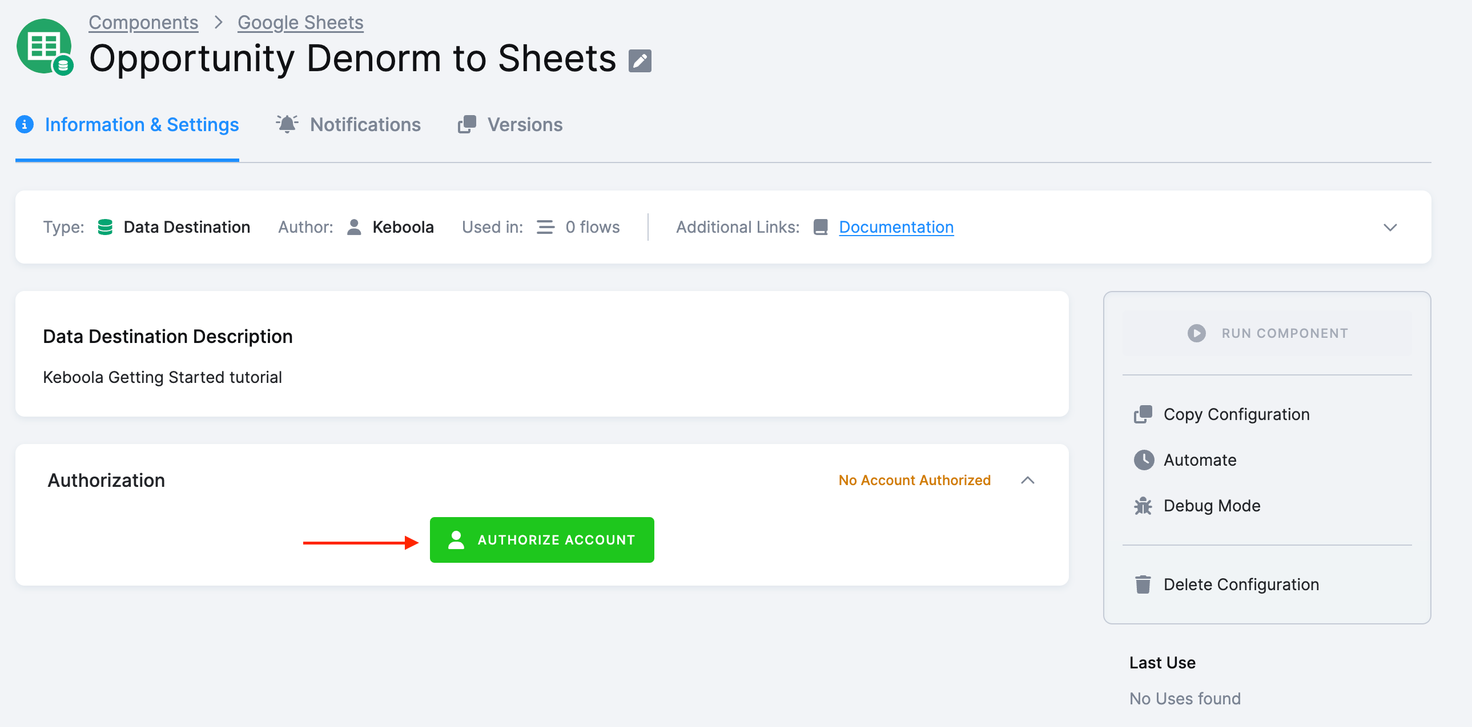
Authorize the account you want to write into.
-
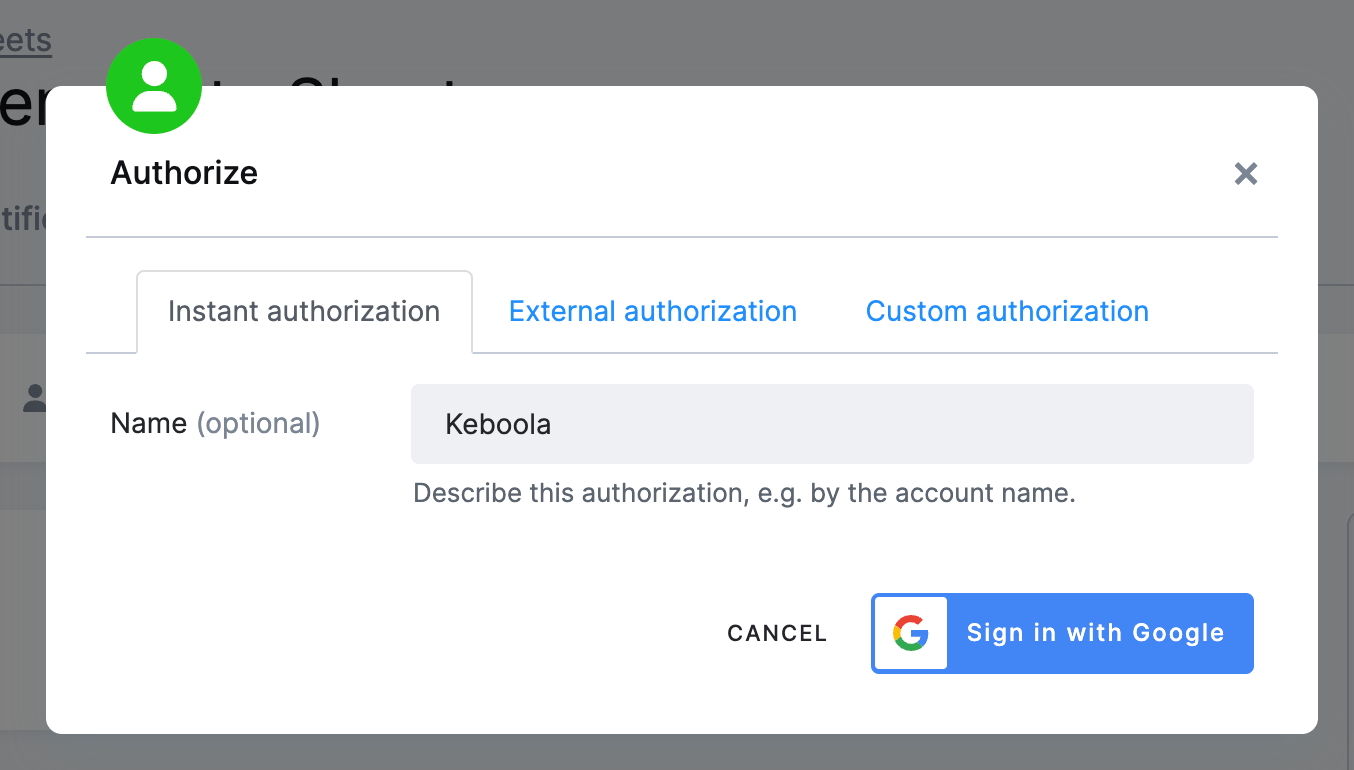
Name the authorization and click Sign in with Google. Use external authorization instead if a colleague — not you — owns the target account; Keboola sends them a link and never sees their credentials.
-
Click Allow.
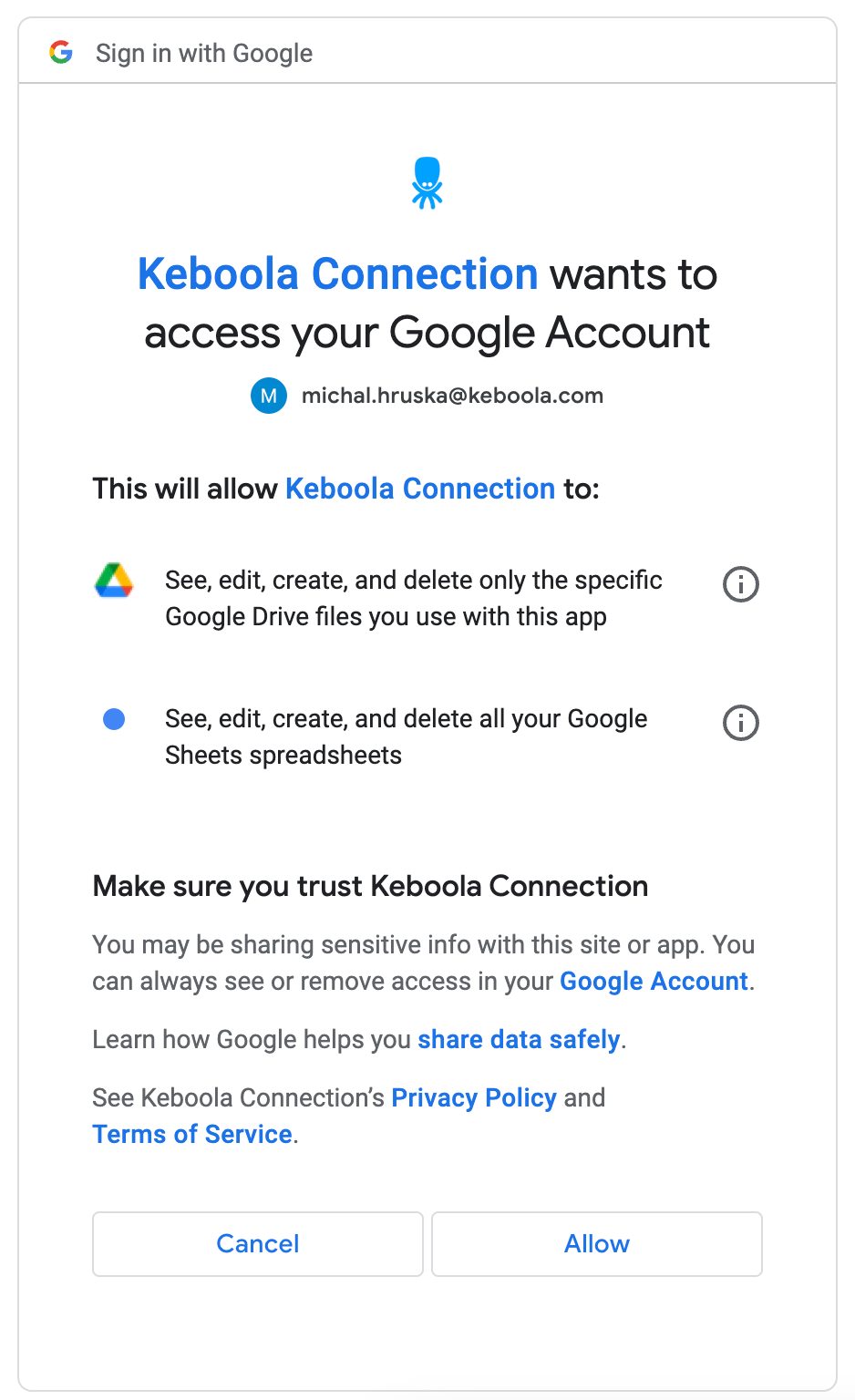
The authorization belongs to this configuration. Keboola stores component secrets as encrypted configuration parameters — there is no decryption API, so the credentials are never readable back out of the configuration.
Pick the table and the sheet
Section titled “Pick the table and the sheet”-
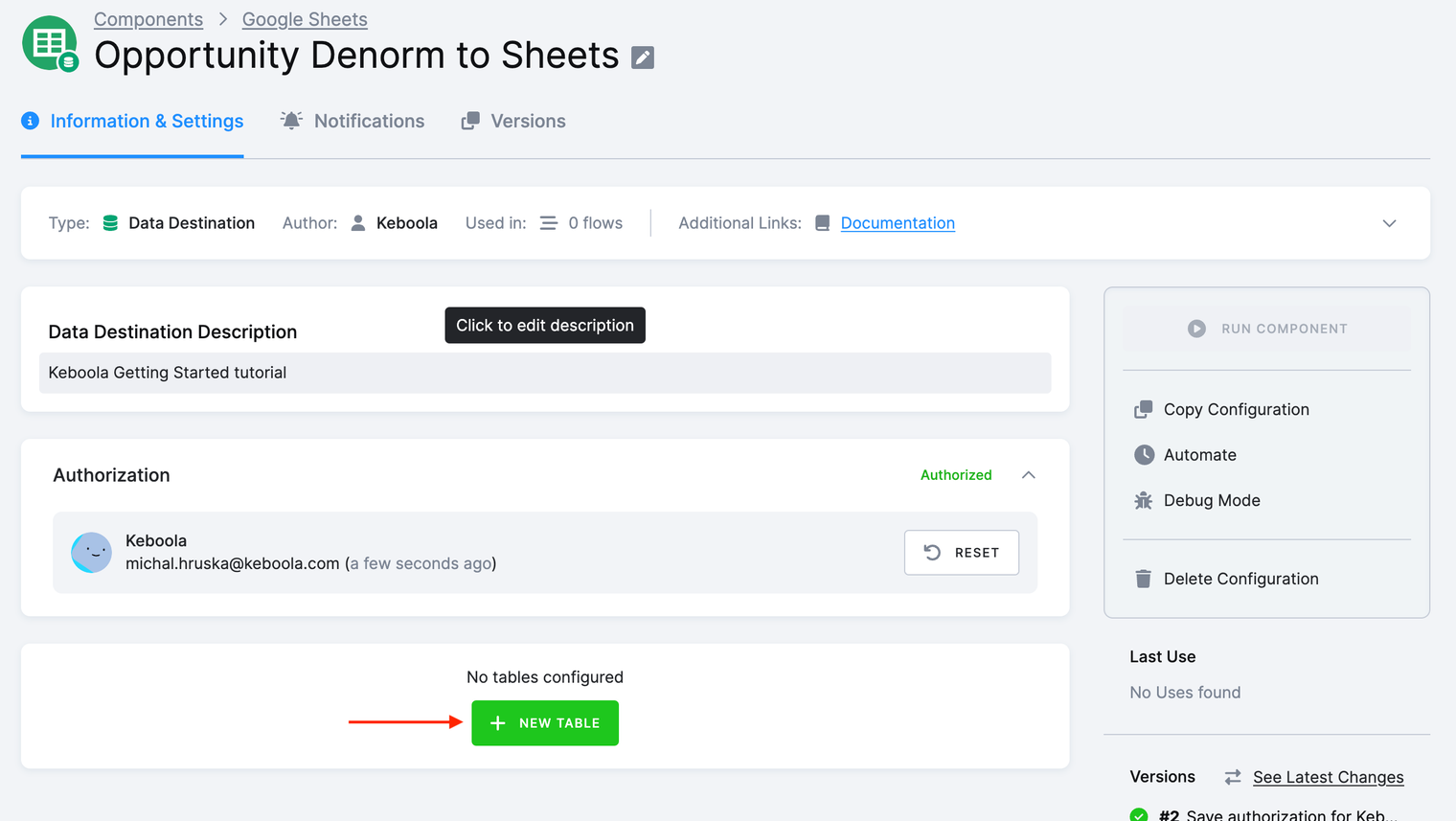
Click New Table.
-
Select
out.c-denormalize-opportunities.opportunity_denormand click Next.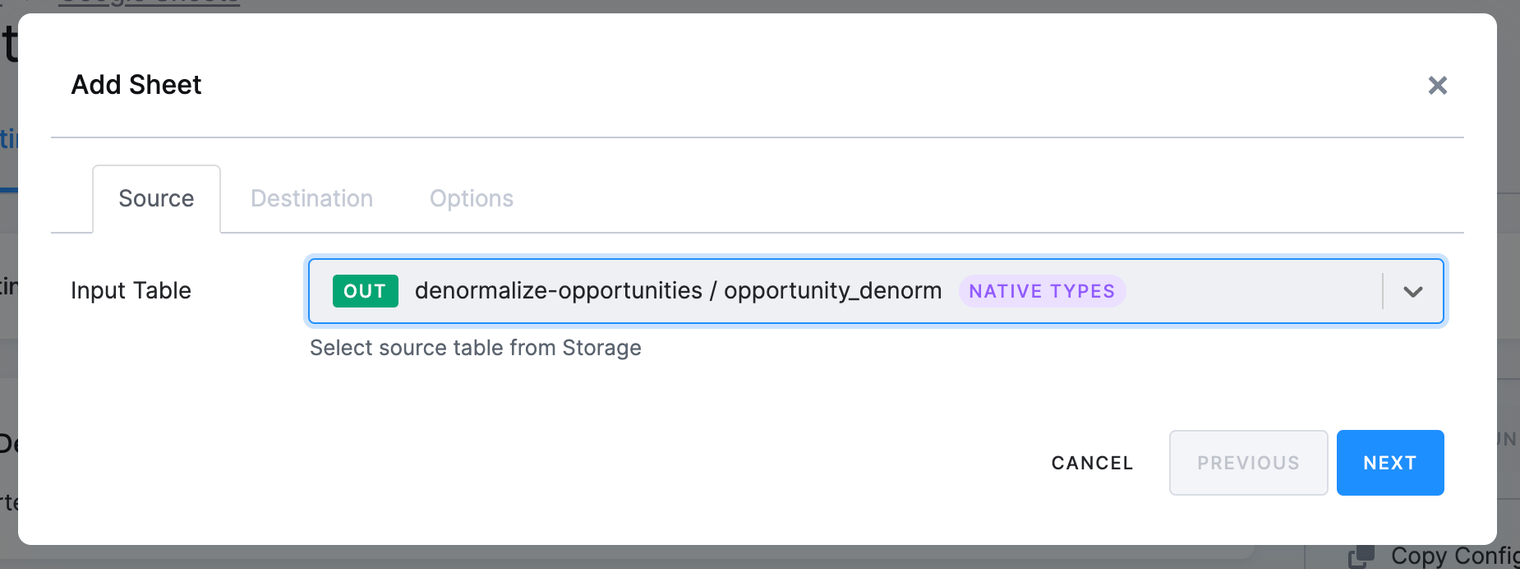
You are now in a small wizard with tabs — Source, Destination, Options — which is why the next two steps feel like one long form.
-
On Destination, choose New spreadsheet and name the spreadsheet — the file that will appear in Drive. Use
[TUTORIAL] Opportunity denorm. An existing spreadsheet works too; you pick it from the authorized account’s Drive. Click Next.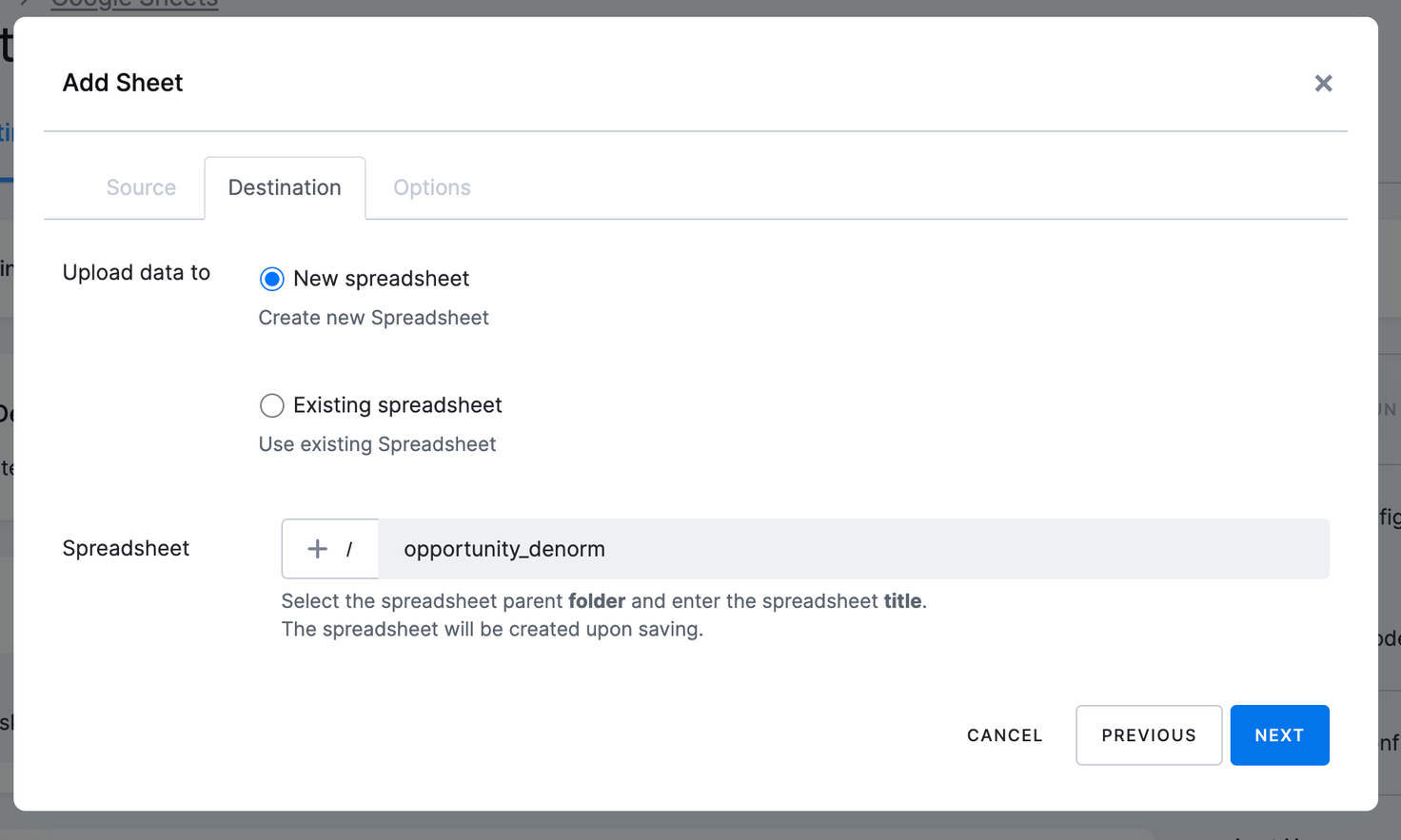
-
On Options, name the sheet — the tab inside that file —
opportunity_denorm, select Update rows, and click Save Sheet. This creates the empty spreadsheet in the authorized account, ready to receive data.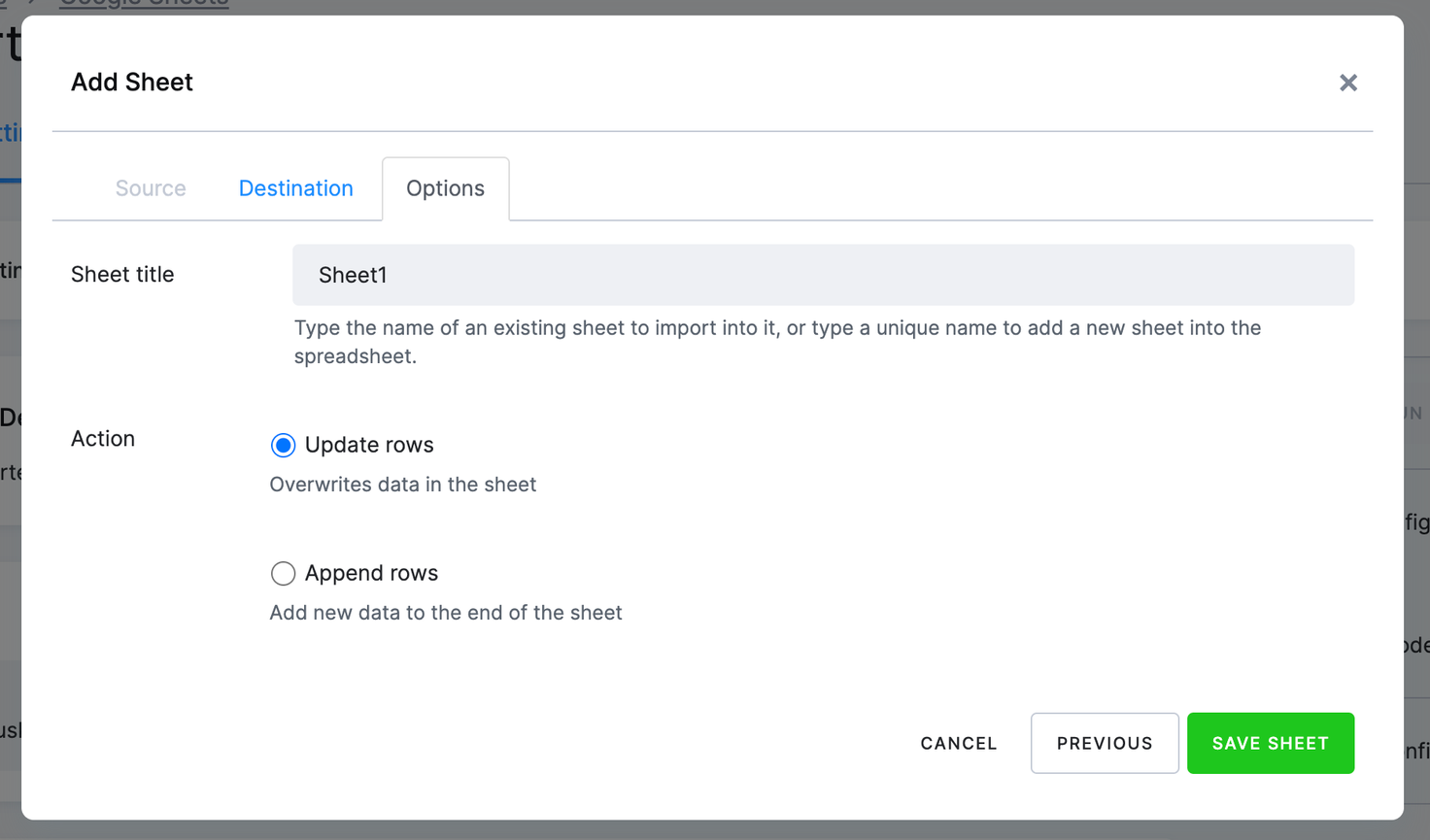
Update rows replaces the sheet’s contents on every run. The alternative appends to the bottom instead — right for a log, wrong for a table you want to reflect current state.
Run it and check the result
Section titled “Run it and check the result”-
Click Run Component.
-
When the job finishes, click the spreadsheet name —
[TUTORIAL] Opportunity denorm— to open it in Google Drive.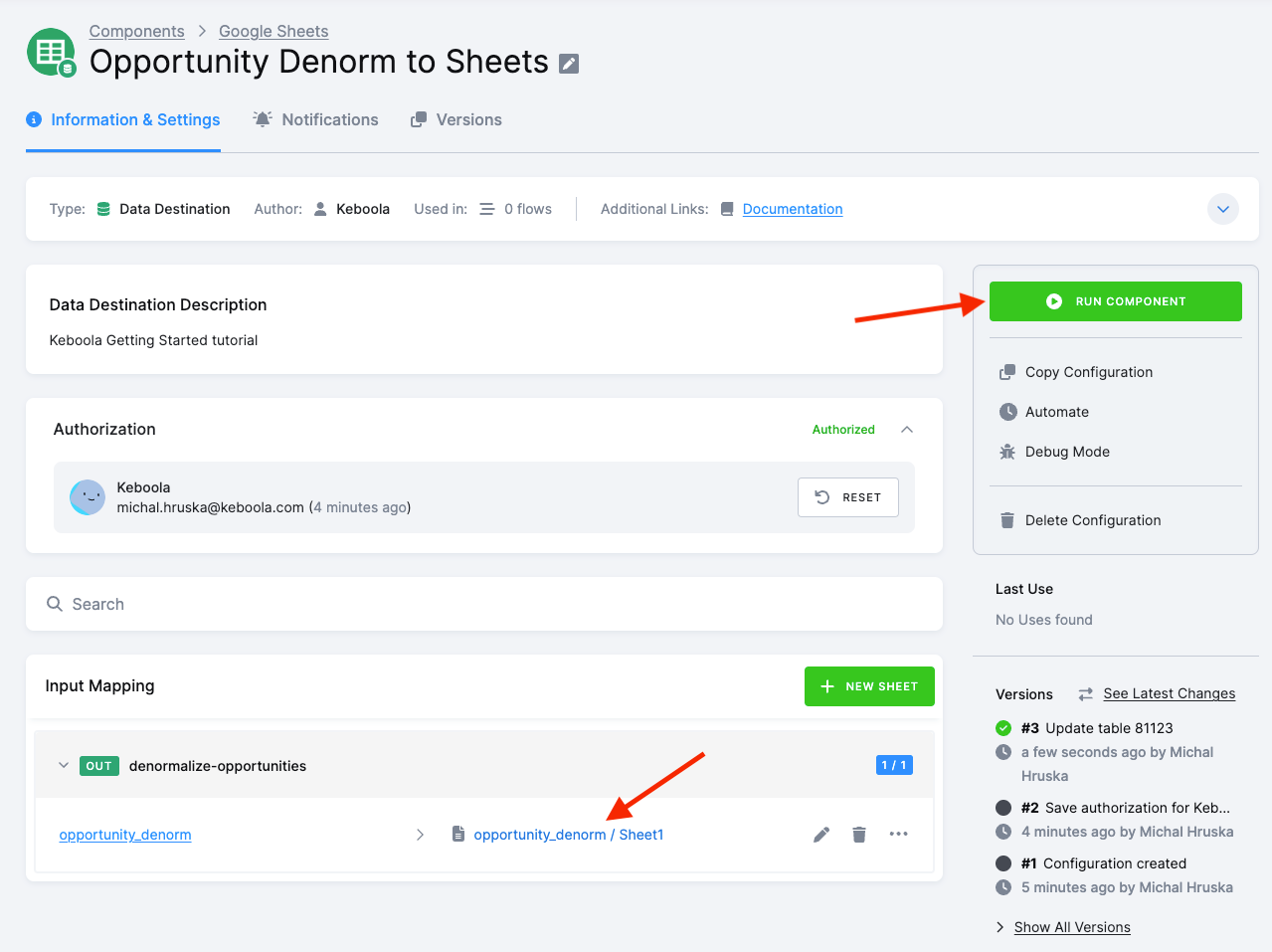
The sheet should hold every row of opportunity_denorm, with the joined columns —
UserName, AccountName, ProbabilityClass — that did not exist in any of the four CSVs
you started with. That is the whole pipeline, end to end.
If it goes wrong
Section titled “If it goes wrong”- The job fails with a permission error. The authorization expired or was revoked in the Google account. Re-authorize the configuration; the sheet selection survives.
- The spreadsheet stays empty. The table was saved in the configuration but the component has not run since — click Run Component. If it did run, check in Jobs whether the source table had any rows.
- Only some columns arrive. The sheet was created against an older version of the table. Delete the sheet from the configuration and add it again so the column list is rebuilt.
- You cannot open the spreadsheet. It lives in the authorized Google account, not yours — if you authorized a colleague’s account, ask them to share it.